pres.texRead-only preview
% Written by Bibby AI
\documentclass[aspectratio=169]{beamer}

\usetheme[nav]{Illinois} % Using [nav] adds a footline section navigation bar
\titlebg{example-image-plain} % Can omit for default metropolis title page
\frametitlelogo{logos/block-i-blue-background.png}

\usepackage{graphicx}
\graphicspath{{figures/}} % Image folder to keep the working directory organized

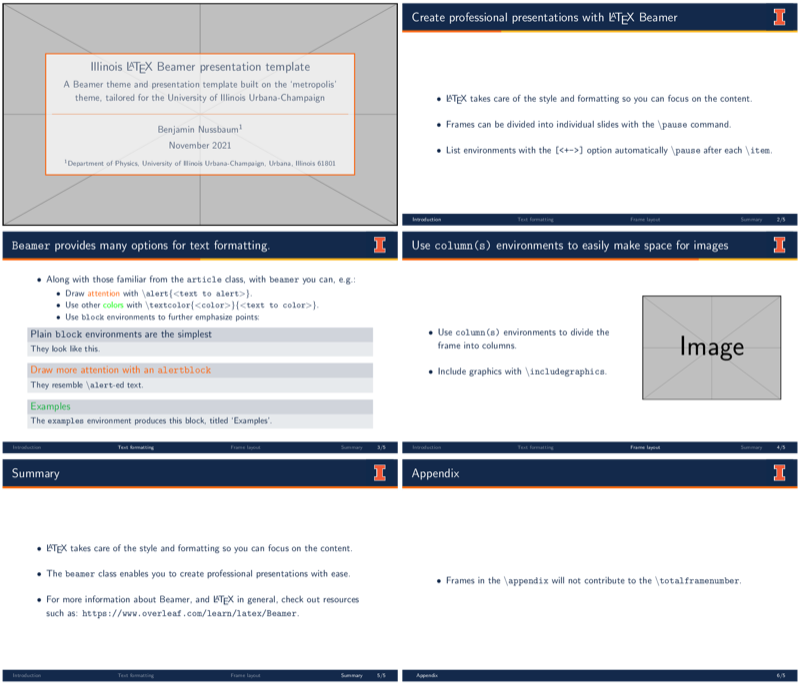
\title{Illinois \LaTeX{} Beamer presentation template}
\subtitle{A Beamer theme and presentation template built on the `metropolis' theme, tailored for the University of Illinois Urbana-Champaign}

\author
{
    Benjamin Nussbaum\inst{1}
    % \and E.~X.~Ample\inst{#} % Add more authors with \and
}

\institute[U.~of~I.]
{
    \inst{1}Department of Physics, University of Illinois Urbana-Champaign, Urbana, Illinois 61801
    % \inst{#}Department of Typography, University of LaTeX, The Internet
}

\date{November 2021}

% ------------------------------------------------------------------------------
\begin{document}

\begin{frame}
    \titlepage
\end{frame}

\section{Introduction}
\begin{frame}{Create professional presentations with \LaTeX{} Beamer}
\begin{itemize}[<+->]
    \item \LaTeX{} takes care of the style and formatting so you can focus on the content.
    \item Frames can be divided into individual slides with the \texttt{\textbackslash pause} command.
    \item List environments with the \texttt{[<+->]} option automatically \texttt{\textbackslash pause} after each \texttt{\textbackslash item}.
\end{itemize}
\end{frame}

\section{Text formatting}
\begin{frame}{\texttt{Beamer} provides many options for text formatting.}
    \begin{itemize}[<+->]
        \item Along with those familiar from the \texttt{article} class, with \texttt{beamer} you can, e.g.:
        \begin{itemize}
        \item Draw \alert{attention} with \texttt{\textbackslash alert\{\textless text to alert\textgreater\}}.
        \item Use other \textcolor{green}{colors} with \texttt{\textbackslash textcolor\{\textless color\textgreater\}\{\textless text to color\textgreater\}}.
        \item Use \texttt{block} environments to further emphasize points:

        \begin{block}{Plain \texttt{block} environments are the simplest}
            They look like this.
        \end{block}

        \begin{alertblock}{Draw more attention with an \texttt{alertblock}}
            They resemble \texttt{\textbackslash alert}-ed text.
        \end{alertblock}

        \begin{examples}
            The \texttt{examples} environment produces this block, titled `Examples'.
        \end{examples}

        \end{itemize}
    \end{itemize}
\end{frame}

\section{Frame layout}
\begin{frame}{Use \texttt{column(s)} environments to easily make space for images}
    \begin{columns}
    \begin{column}{0.6\linewidth}
        \begin{itemize}[<+->]
            \item Use \texttt{column(s)} environments to divide the frame into columns.
            \item Include graphics with \texttt{\textbackslash includegraphics}.
        \end{itemize}
    \end{column}
    \begin{column}{0.4\linewidth}
        \includegraphics<2->[width=\linewidth]{example-image}
    \end{column}
    \end{columns}
\end{frame}

\section{Summary}
\begin{frame}{Summary}
    \begin{itemize}
        \item \LaTeX{} takes care of the style and formatting so you can focus on the content.
        \item The \texttt{beamer} class enables you to create professional presentations with ease.
        \item For more information about Beamer, and \LaTeX{} in general, check out resources such as: \url{https://www.overleaf.com/learn/latex/Beamer}.
    \end{itemize}
\end{frame}

\appendix

\section{Appendix}
\begin{frame}{Appendix}
\begin{itemize}
    \item Frames in the \texttt{\textbackslash appendix} will not contribute to the \texttt{\textbackslash totalframenumber}.
\end{itemize}
\end{frame}

% Written by Bibby AI
\end{document}
Preview

PDF Preview
Create an account to compile and preview